Multilingual sites aren’t a “nice-to-have” anymore – they’re essential. But as WordPress continues to evolve, especially with block themes and custom Gutenberg blocks, managing translations isn’t always straightforward.
If you’re building with blocks and planning to use WPML (WordPress Multilingual Plugin), here’s what you need to know to avoid headaches -and get everything from custom blocks to template parts working beautifully across multiple languages.
Before You Start: A Quick Heads-Up
Planning to use WPML with your custom blocks? Set it up before you start adding content.
Seriously – we’ve seen this trip up more than one project. WPML needs to know what to look for, and if your content is already saved, it might not detect block attributes properly later on.
Translating Core Gutenberg Blocks
No surprises here. Paragraphs, headings, buttons, images – all the usual suspects work out of the box. WPML has that covered.
Translating Custom Blocks (Yes, You’ll Need a Bit More Setup)
If you’re using blocks created with @wordpress/create-block, you’ll need to guide WPML a little. Here’s how:
Step 1: Add a wpml-config.xml
This tells WPML what to translate.
You’ve got two options:
- Drop the file in your theme root, or
- Paste the config into WPML > Settings > Custom XML Configuration
Pasting it into WPML settings overrides the file version, so be mindful of where you’re managing it.
Step 2: Tell WPML Which Attributes to Translate
Open your block in code editor mode, or look at edit.js, save.js, or render.php to spot attributes.
For example, if a custom block outputs:
<!– wp:my-blocks/text-arrow-block {“title”:”Hello”,”text”:”Welcome to our site”} /–>
Your XML configuration should look like:
What About Links in Blocks?
There are two ways your block might handle links – and that changes how you translate them.
For complex attribute types and nesting, refer to the official WPML documentation.
1. Your Block Stores Raw URLs
Simple enough.
Just go into each translated version and update the URL manually.
Example:
- EN: /services
- DE: /de/services
Yes, it’s manual – but clean and predictable.
2. Your Block Stores Post/Page IDs
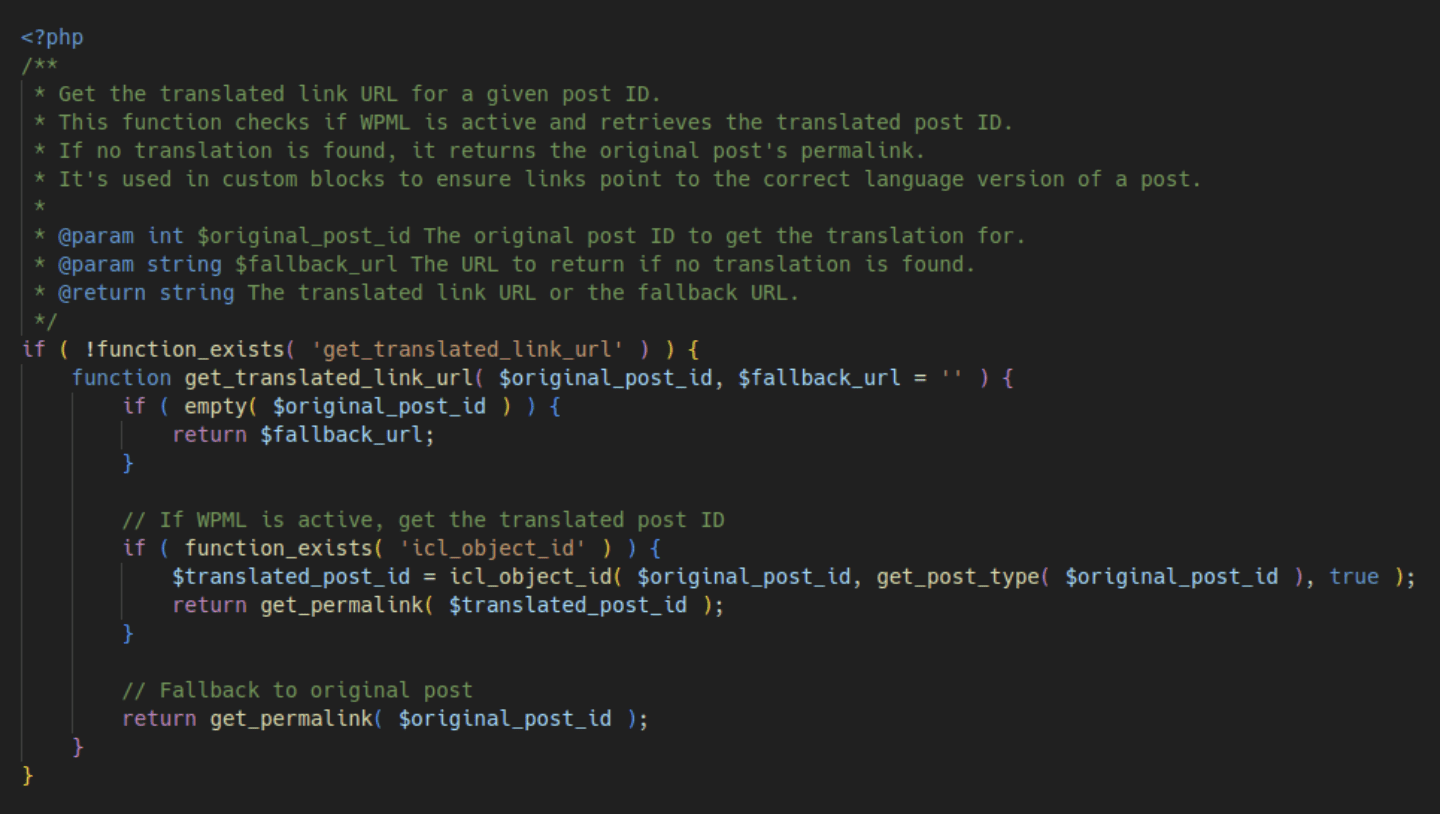
This is where it gets clever. You can use this handy helper function to automatically fetch the translated URL based on the original post ID:
Use this function in your block render logic or in functions.php to automatically generate correct language-specific URLs.
What to Do After You Add the XML
If your blocks were already on the page before you added wpml-config.xml, you just need to:
- Edit the page
- Make a small change to the block
- Hit save
That’ll force WPML to re-read the block and pick up the new translatable strings.
Translating Template Parts
If automatic translation is enabled, WPML will handle these behind the scenes.
If not:
- Go to WPML > Translation Management
- Scroll to Site Template Parts
- Select the ones you want and send them to the translation editor
Pro tip: Don’t see your template part listed? Make a small change and re-save it – it’ll show up.
Translating PatternsSynced Patterns (Core Blocks Only)
These show up just like templates – ready to be translated in the WPML dashboard.
Non-synced Patterns (with Custom Blocks)
Just make sure the custom blocks inside the pattern are properly defined in wpml-config.xml. From there, follow the same steps as you would for individual blocks.
A Few Final Tips to Keep Things Running Smoothly
- Use the language switcher in the editor sidebar to move between versions.
- Save when the orange separator appears – it means you’re mid-translation.
- Use the translated permalink to preview content in the right language.
- Still not seeing translated blocks? Try a refresh and a re-save.
With a bit of setup upfront, you can make your custom blocks play nicely with WPML – giving you a clean, maintainable multilingual WordPress experience that works from the block editor all the way down to the permalink.
Do you have any favourite WPML tips or headaches you’ve solved recently? Drop us a message – we’re always up for a geeky chat.